Add, move and remove blocks
Pages are built from blocks. Add new ones, put them in order, copy them between pages and share one across your site.
Every page is a stack of blocks: a header, a text section, a gallery, a contact form and so on. The editor lists a page's blocks in the panel on the left, in the order they appear on the page.
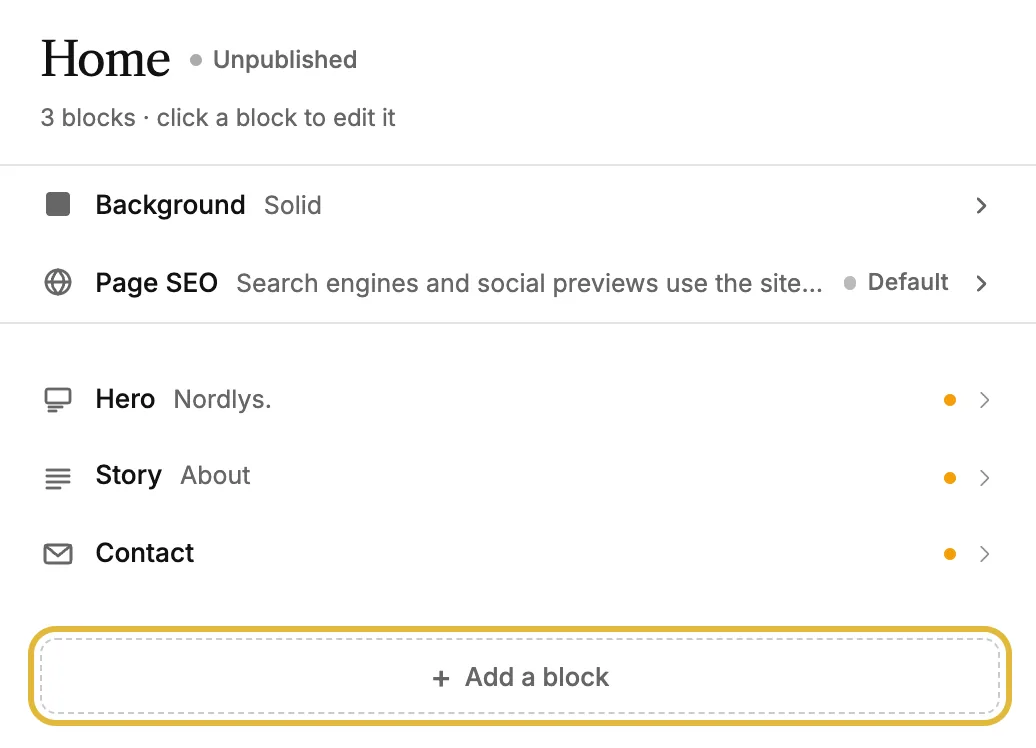
Add a block
-
Click Add a block at the bottom of the list, or press ⌘K (Ctrl+K on Windows).
-
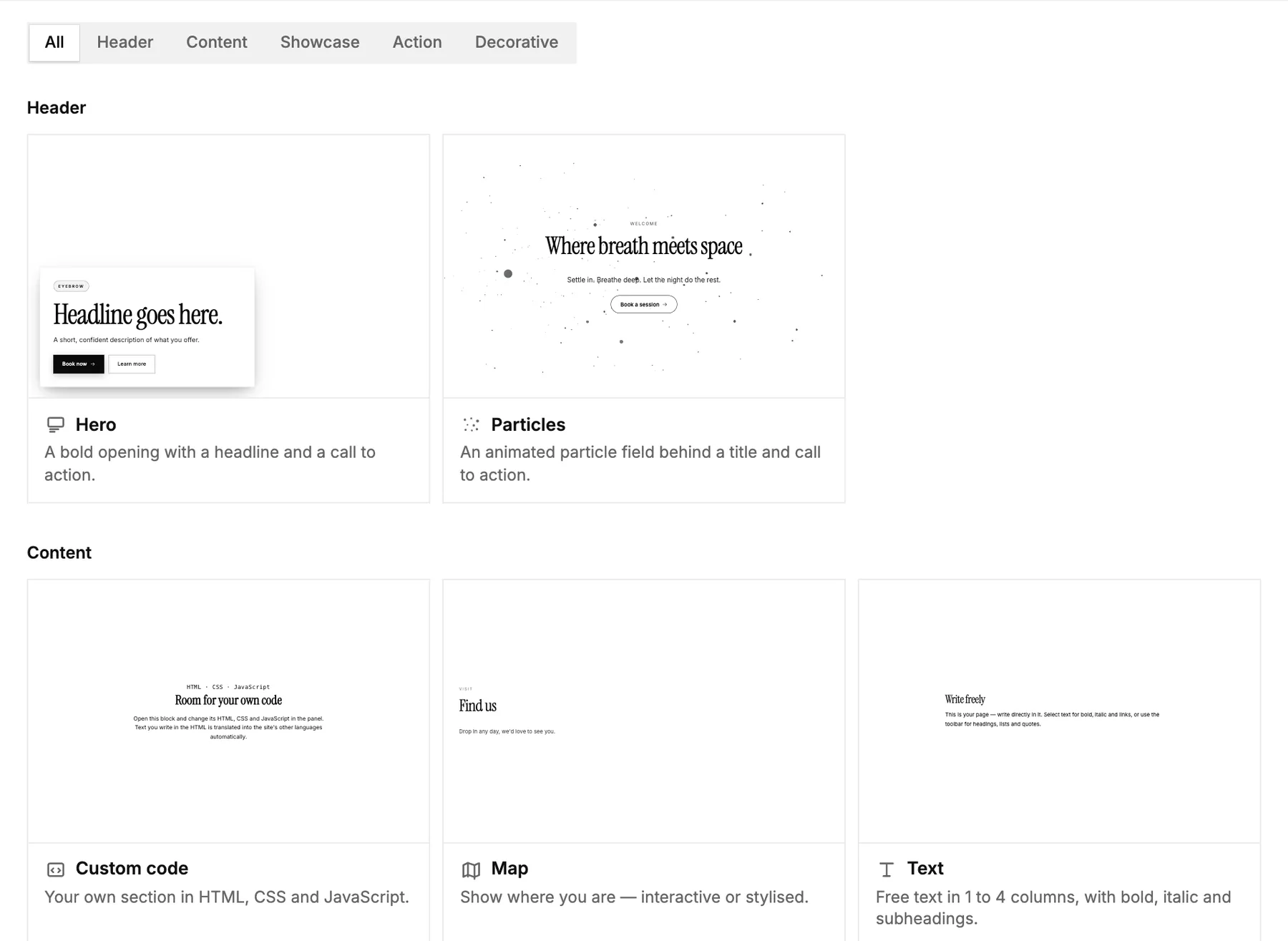
Find the block you want. Search by name, or filter by kind: header, content, showcase, action or decorative. The previews show each block in your site's own colours and fonts.
-
Click a block to add it. It's placed at the end of the page, ready for your text and images.
On designer templates, Add a block here between the sections adds a block exactly where you want it.
Move, copy or delete a block
To change the order, drag a block in the list by its handle. Or hover a block on the page and use its toolbar:
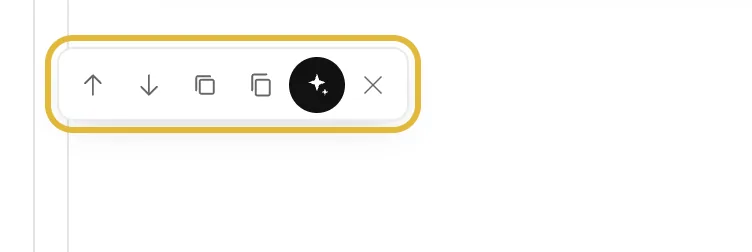
- Move up and Move down move the block one place.
- Duplicate adds a copy just below.
- Copy keeps the block so you can paste it on another page. Move to page moves it there.
- AI assist (✦) rewrites the block for you.
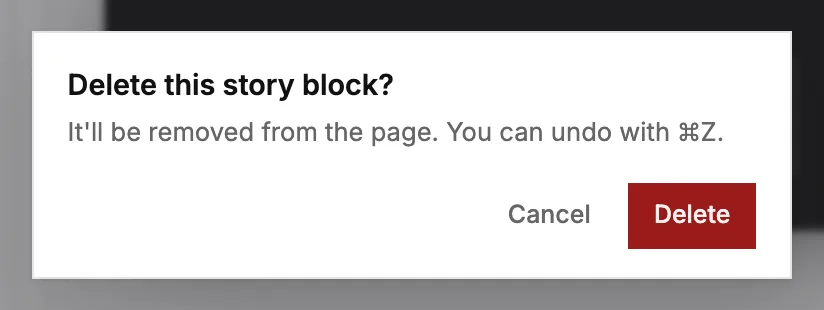
- Delete removes the block after asking you first.
Share a block across pages
A global block is one block used on several pages, such as an opening hours section or a call to action. Edit it once and every page that uses it changes with it.
- Open a block, click ⋯ at the top of the panel and choose Make global. Give it a name you'll recognise.
- To add it to another page, open Add a block and click Global blocks.
- Detach from global turns a page's copy back into a normal block that you can change on its own.
Good to know
- On designer templates, the template's own sections can be hidden but not deleted, so you can always bring them back.
- Need something no block covers? The Custom code block holds your own HTML, CSS and JavaScript.