Pages & editor
Edit text, add blocks and pages, and restore earlier versions.
Guides
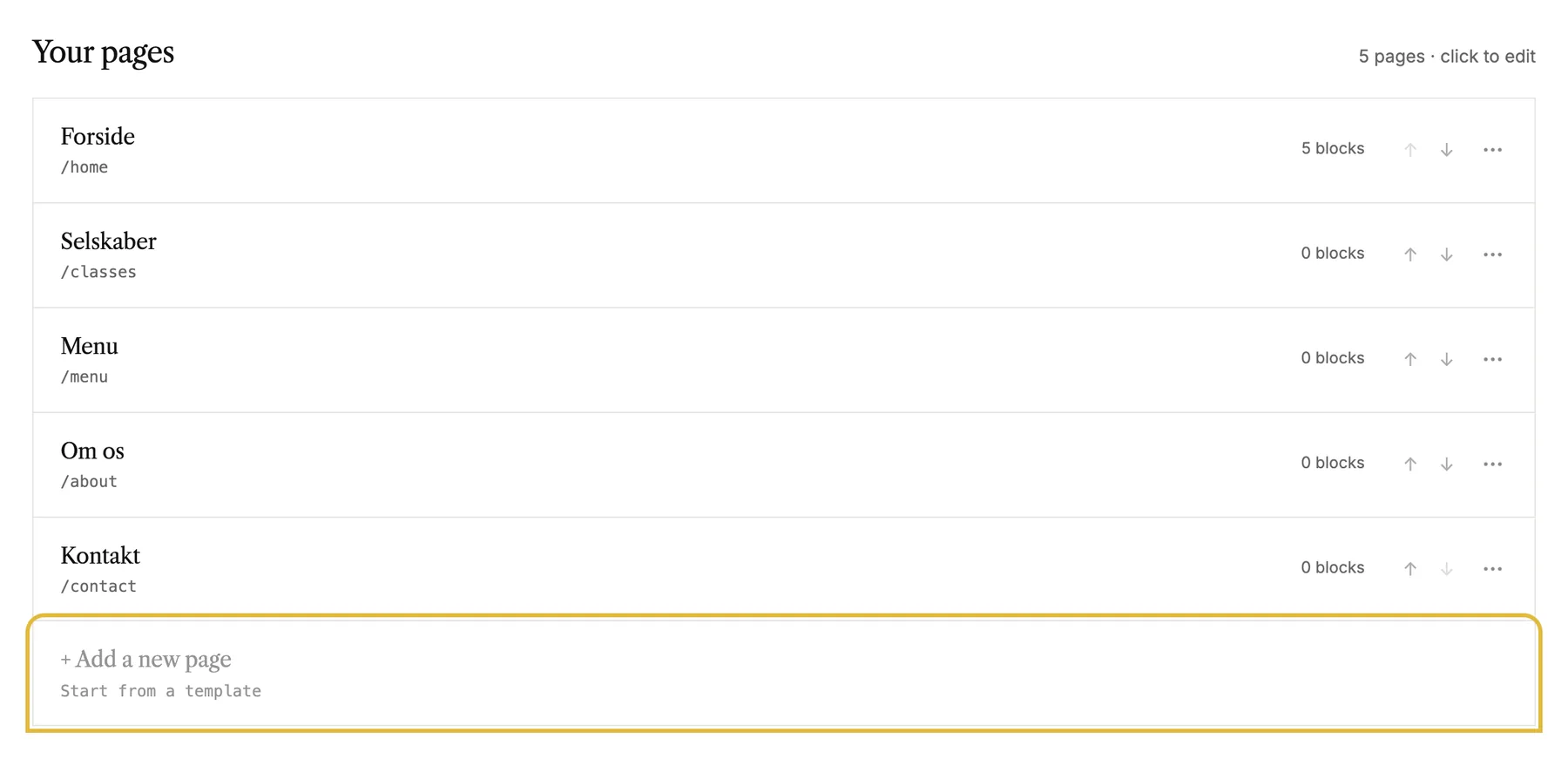 Add and arrange pages
Add a page from a template, put it in the right place in your menu, and rename, hide or delete pages.
Add and arrange pages
Add a page from a template, put it in the right place in your menu, and rename, hide or delete pages.
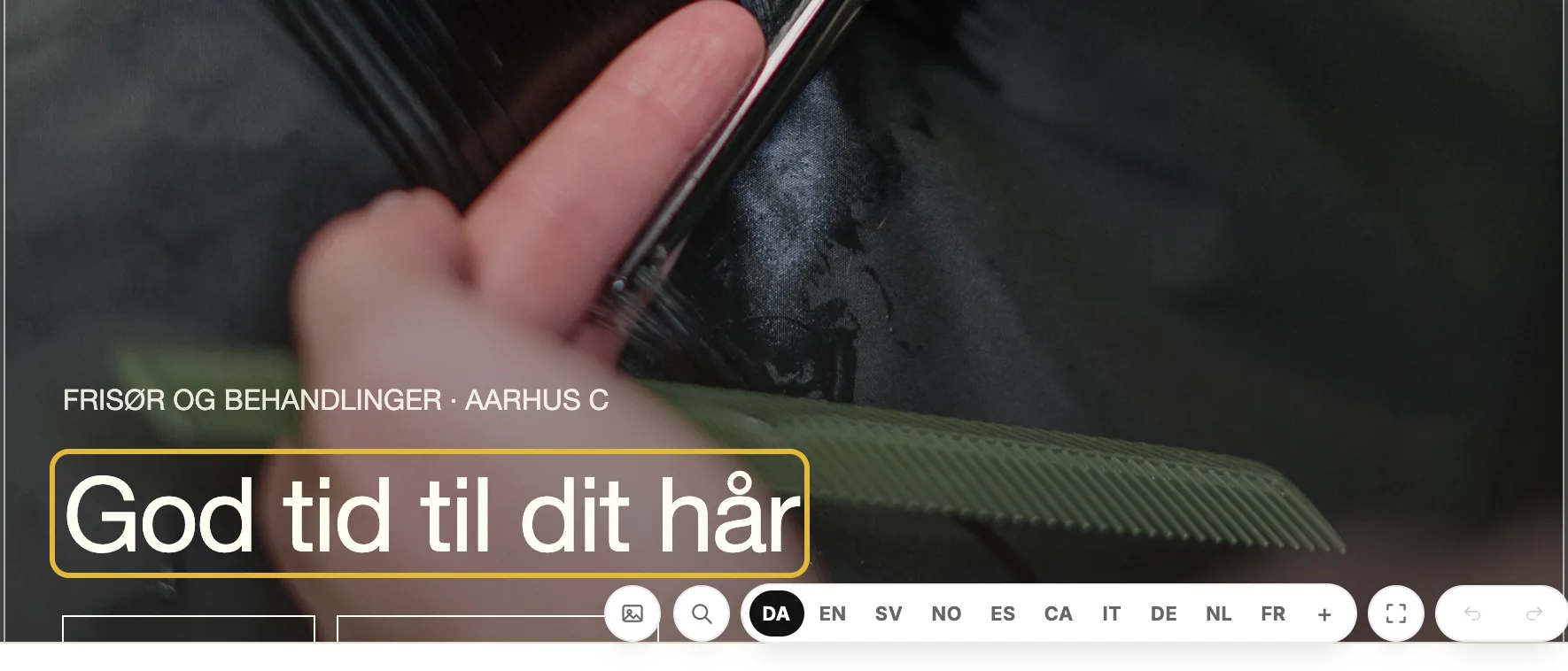 Edit text and images
Change text right on the page, swap images, write image descriptions and let AI rewrite a block.
Edit text and images
Change text right on the page, swap images, write image descriptions and let AI rewrite a block.
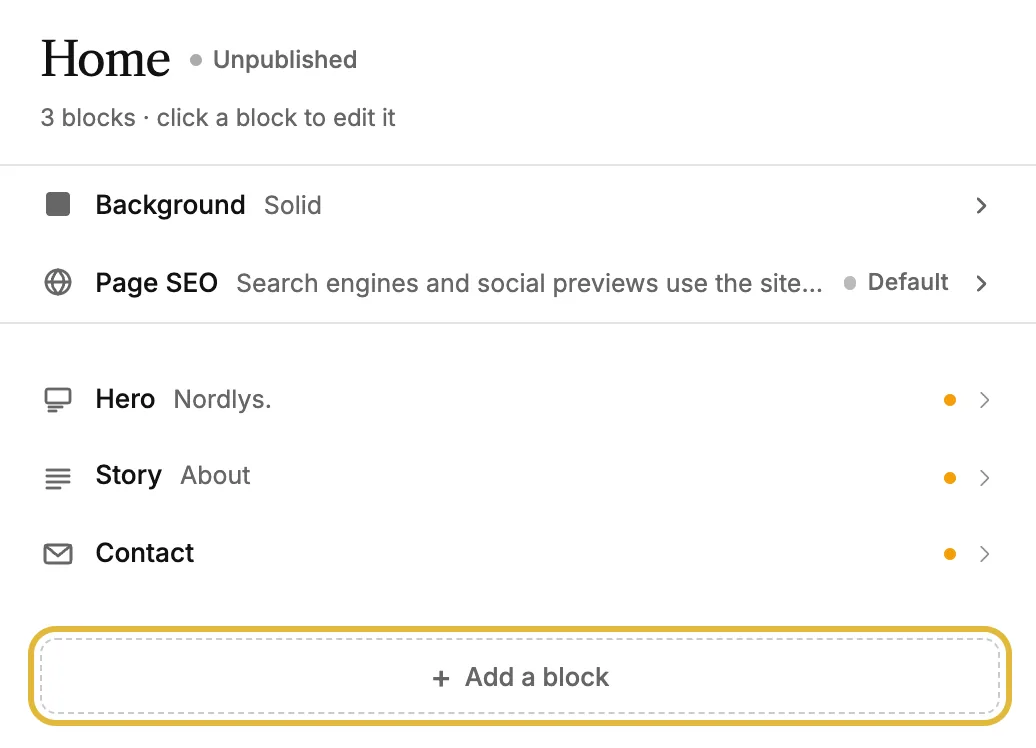 Add, move and remove blocks
Pages are built from blocks. Add new ones, put them in order, copy them between pages and share one across your site.
Add, move and remove blocks
Pages are built from blocks. Add new ones, put them in order, copy them between pages and share one across your site.
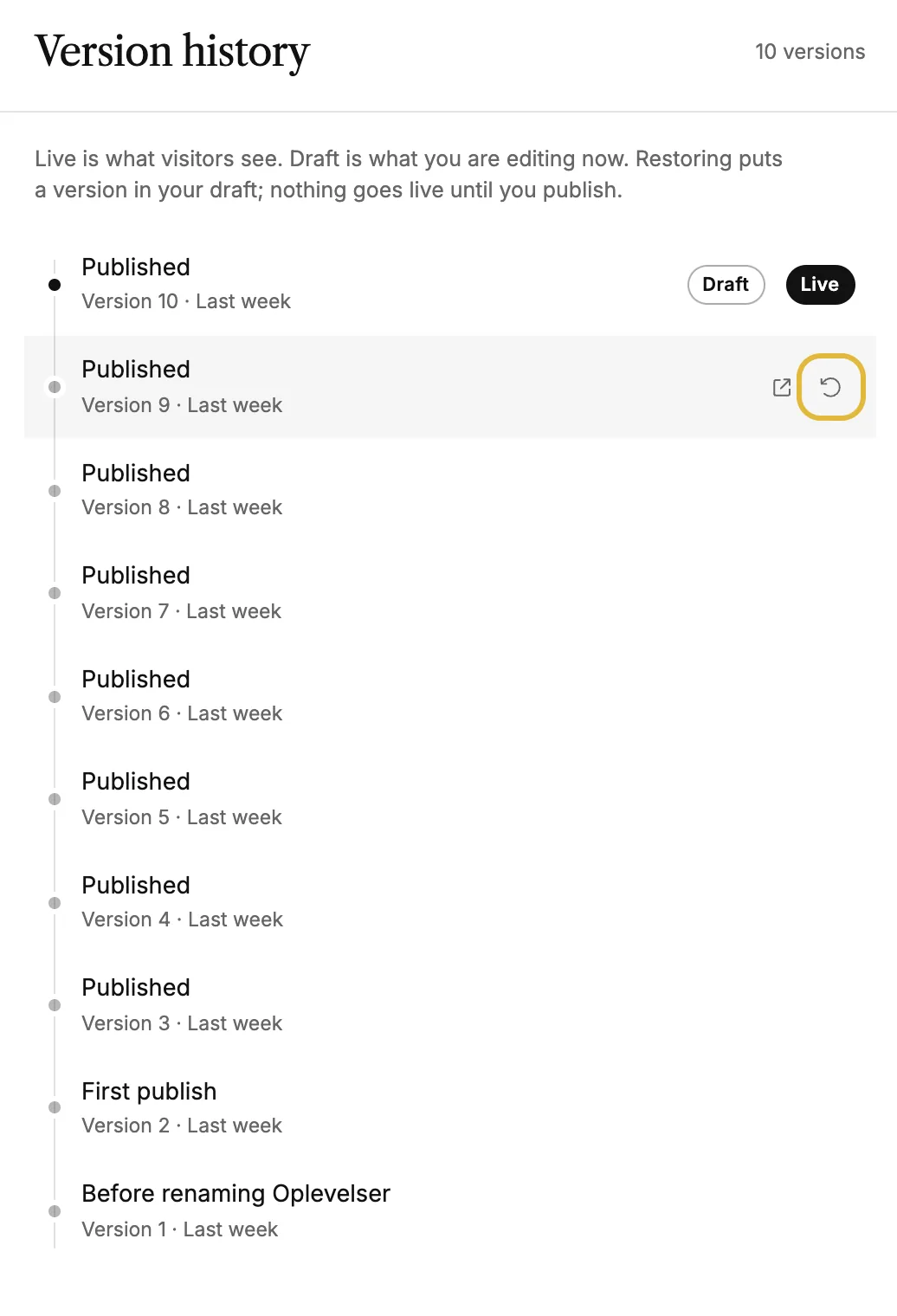 Restore an earlier version
Go back to how your site looked before: see what a restore changes, then restore it as a draft or put it live.
Restore an earlier version
Go back to how your site looked before: see what a restore changes, then restore it as a draft or put it live.
Quick answers
Pages
How do I add a page?
Click "Add a new page", then pick a starting point: blank, one of the templates, or the Experiences page if your Understory account is connected.
How do I change the order of pages in the menu?
Use the up/down arrows on each page row. The public menu follows the same order.
How do I connect my Understory account?
Open your workspace settings and connect Understory there. Once connected you can add the auto-synced Experiences page and the Understory booking and reviews blocks.
Can visitors book directly on my site?
Yes. Set up Bookings, switch online booking on and add the Book a time block to a page. With Understory connected, visitors can also book your experiences right on your site.
Can someone see my site before it's published?
Yes. Click "Copy preview link" on the site overview and send it along. The link shows the current draft without a login, and nothing goes public.
What is the page marked "Auto"?
That's your Experiences page. It renders live from your Understory experiences, so there are no blocks to edit, but you can rename it, change its address and publish or draft it like any page.
Editor
How do I edit text?
Click any text directly in the preview and type. Use the panel on the left for images, colors and block settings.
How do I add, move or remove a block?
Add a block with the + button at the bottom of the left panel. In the list, drag a block by its handle to move it, or hover it for arrows, duplicate and delete.
What does the ✦ button on a block do?
AI assist. Ask for anything in your own words or use the quick actions (shorter, punchier, translate…). Changes apply to the block and can be undone with ⌘Z or the panel's Undo.
How do I see how my site looks on mobile?
Use the desktop/mobile toggle at the bottom right of the editor. Every block adapts on its own, so the mobile layout is handled for you.
Can I add video?
Yes. The Video block plays a YouTube or Vimeo link, or a clip you upload. Hero blocks can also run a muted video loop as their background.
How do I show customer reviews?
Add the Reviews block. Write quotes yourself, or, with Understory connected and public reviews enabled there, pick real guest reviews that stay in sync on their own.
How do I add my logo?
Switch to the Branding tab at the top of the editor. The Identity panel there takes your logo, a compact mark and the browser-tab icon, and they flow into the header, footer and browser tab across the site.
What is a global block?
A block shared across pages. Edit it once, and every page that uses it changes with it. Open a block and choose Make global in its ⋯ menu. Detach from global turns it back into a normal block.
History
What shows up in the activity log?
Every meaningful change, such as edits, publishes, page adds and renames and settings changes, with who did it and when.
Can I restore something from here?
Not from the log itself, it's a record of who changed what. To go back, open History in the editor and restore an earlier version of your site. ⌘Z undoes your most recent edits, and deleted sites stay in the trash for 30 days.