Add and arrange pages
Add a page from a template, put it in the right place in your menu, and rename, hide or delete pages.
You can add and manage pages in two places: the list called Your pages on your site's dashboard, and the page list at the top of the editor. A new page is a draft until you publish, so you can build it in peace.
Add a page
-
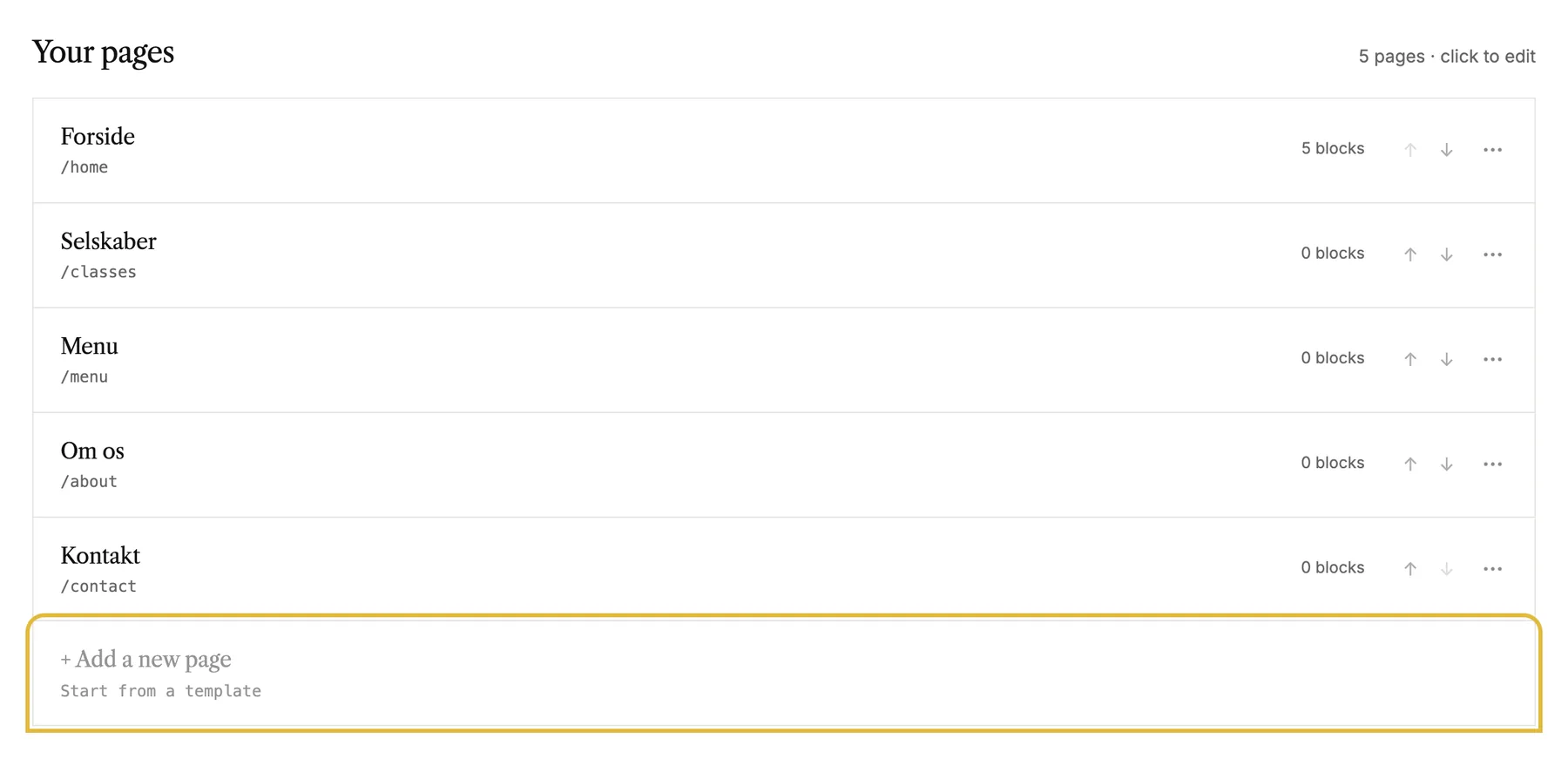
On your site's dashboard, scroll to Your pages and click + Add a new page at the bottom of the list.
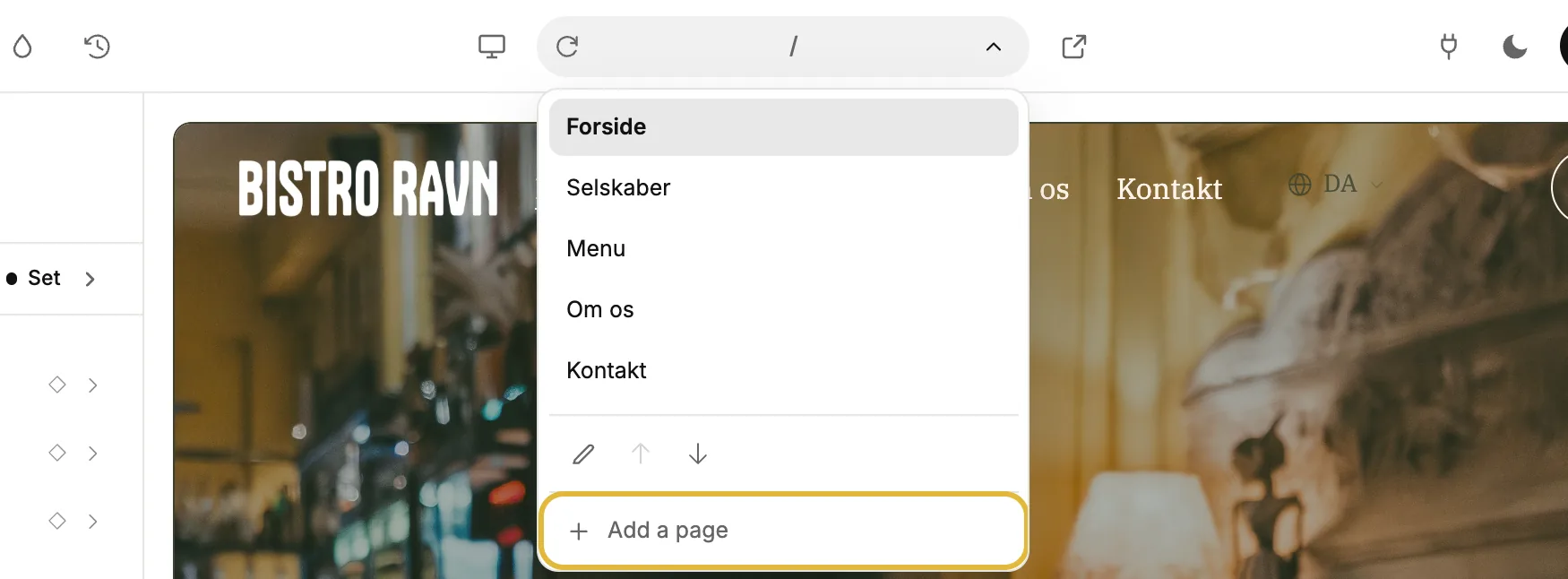
Or, while you're in the editor, click the page address at the top to open the page list, and click Add a page.
-
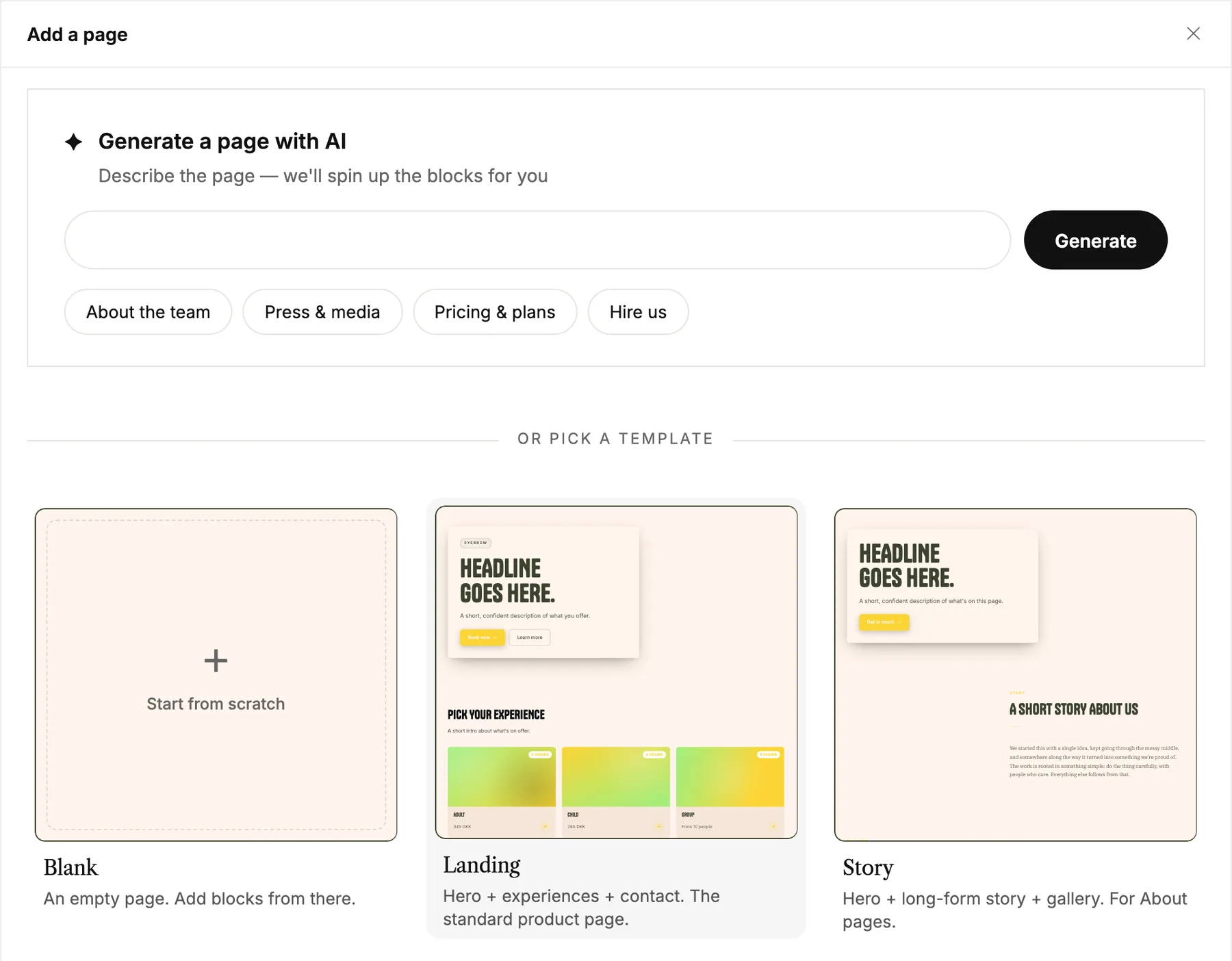
Pick a starting point. Blank is an empty page, the templates come with blocks already in place, and Generate a page with AI builds one from a sentence you write. Further down you can also start from a copy of one of your own pages.
-
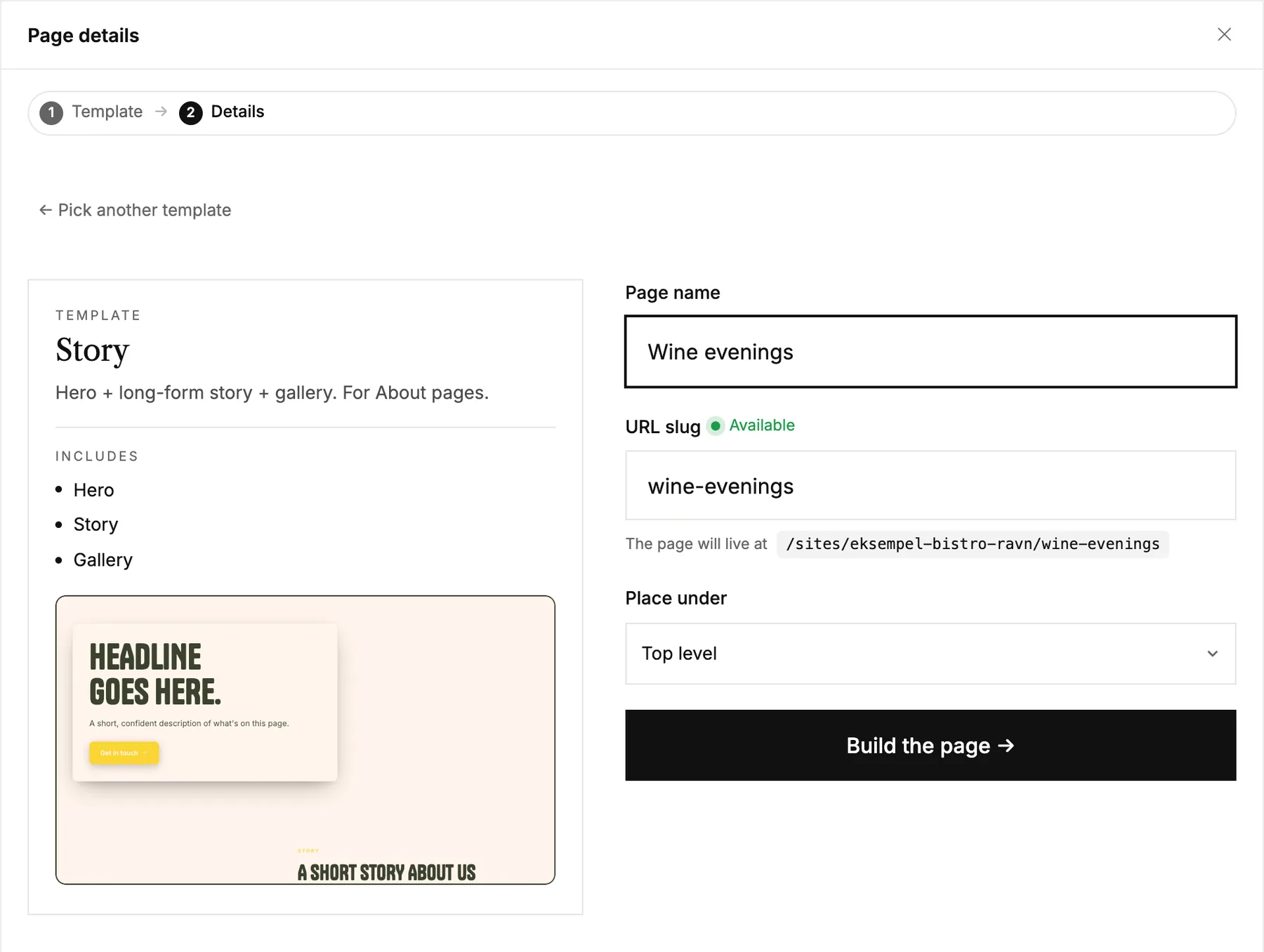
Give the page a name. Its address is made from the name, and you can shorten it if you like. Use Place under when the page belongs under another page, as a sub-page.
-
Click Build the page. From the dashboard, the page shows up in your list. From the editor, it opens right away so you can start on it.
Other ways to add a page
- Add sub-page in a page's menu adds a new page under that one, with Place under already filled in.
- Duplicate, where you see it in a page's menu, copies the page with all its blocks, as a draft.
- In the editor, Add a sub-page under … in the page list adds one under the page you're on.
- With Claude or ChatGPT connected, you can ask it to add a page for you. See Working with AI.
Change the order
Use the arrows next to a page to move it up or down. A page moves among its own level: top pages among top pages, and sub-pages under the same page.
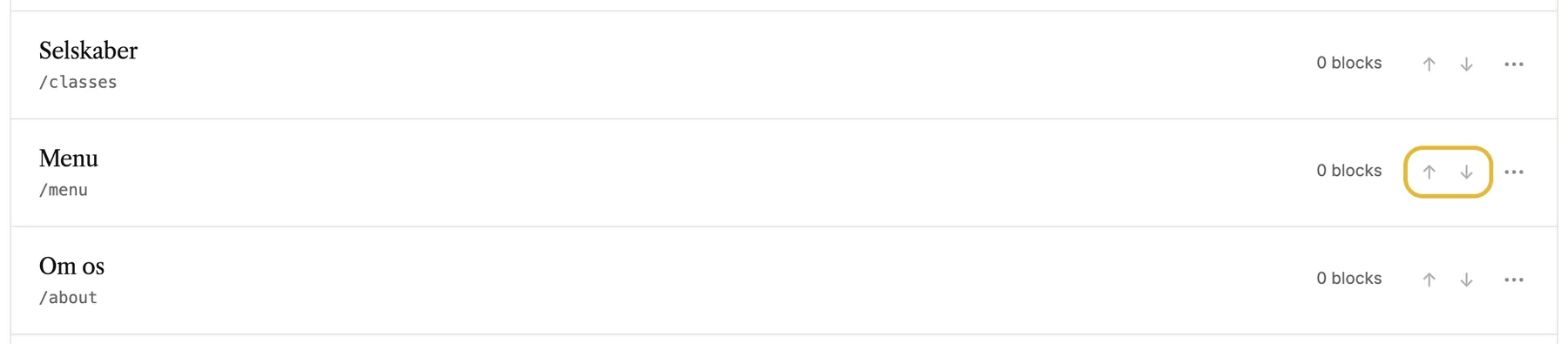
The new order applies right away, without publishing. Your menu follows it, unless you've arranged the menu by hand. Then the menu keeps its own order.
Rename, hide or delete a page
Click ⋯ next to a page to open its menu.
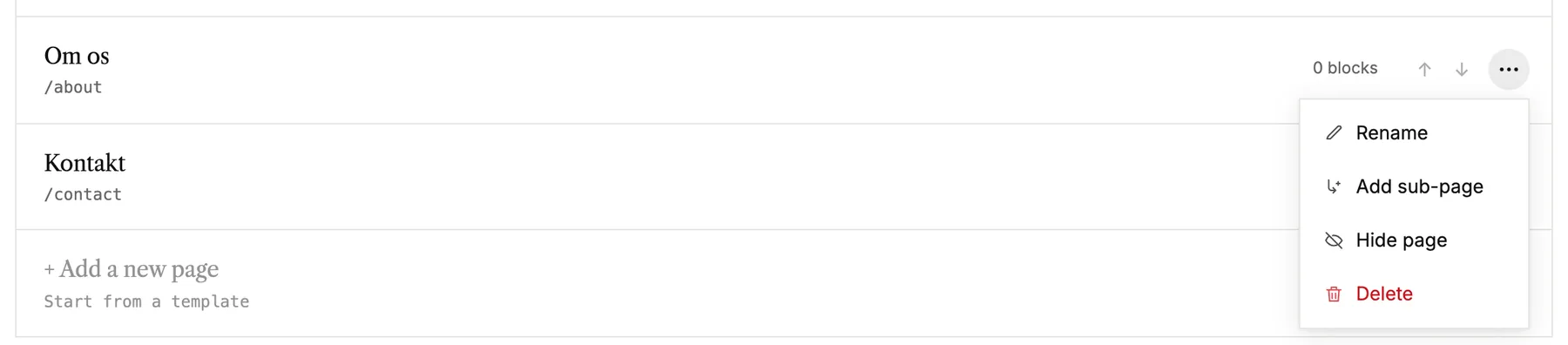
- Rename changes the page's name and address. Links on your site follow along, and the old address sends visitors to the new one.
- Add sub-page adds a new page under this one.
- Hide page takes the page out of your menus when you publish. Its address keeps working, so you can still link to it.
- Delete removes the page and its blocks. Your home page can't be deleted.
From the editor
The page list in the editor has the same actions for the page you're on: rename, duplicate, move up or down, hide and delete. They sit as icons just above Add a page.