Edit text and images
Change text right on the page, swap images, write image descriptions and let AI rewrite a block.
Most of your site's text can be changed right where you see it on the page. Images, image descriptions and a block's other settings sit in the panel on the left. Everything you change is saved as you go, as a draft, until you publish.
Edit text on the page
-
Click a heading or a piece of text in the editor's preview and type. A line around it shows what you're editing.
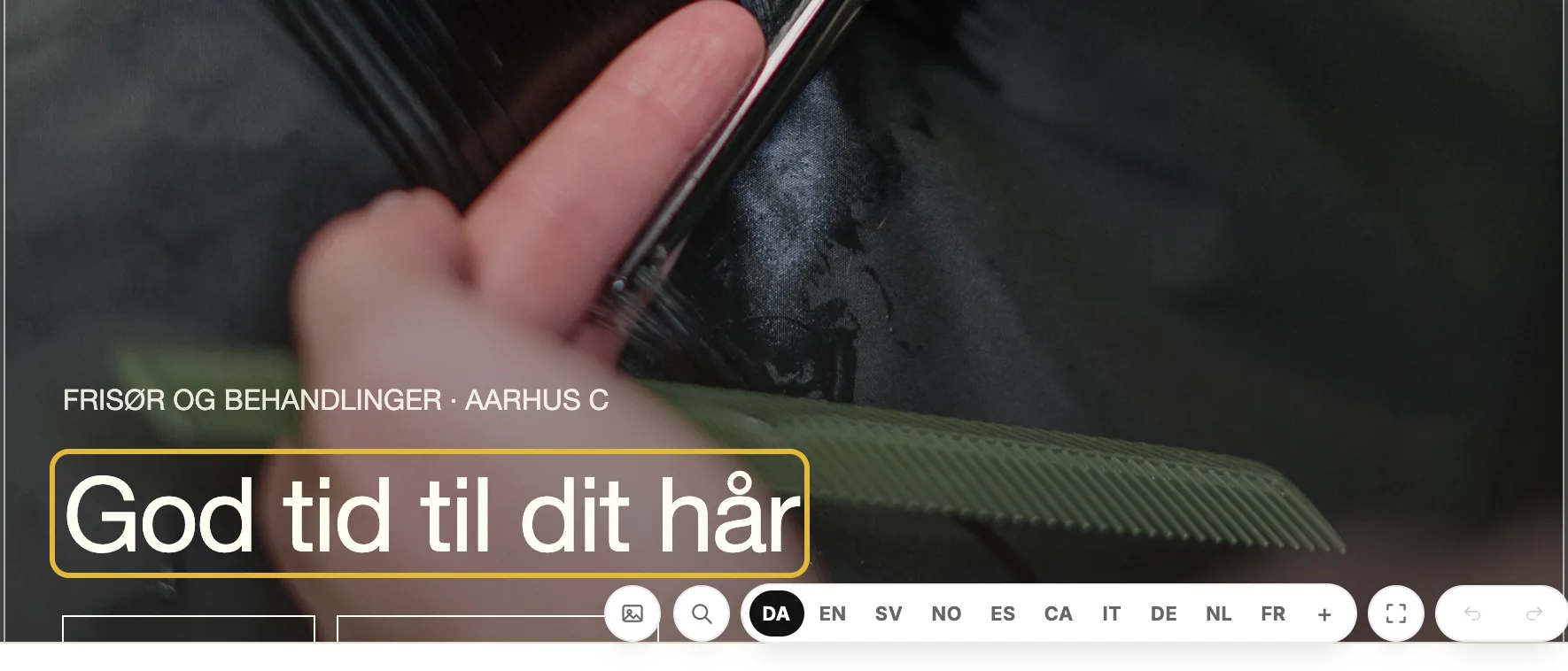
-
Press Enter or click somewhere else to keep your change. Press Escape to put the text back the way it was.
Longer text, in a Text or FAQ block for example, gets a small toolbar for bold, italic, links, headings, lists and quotes.
Use the panel
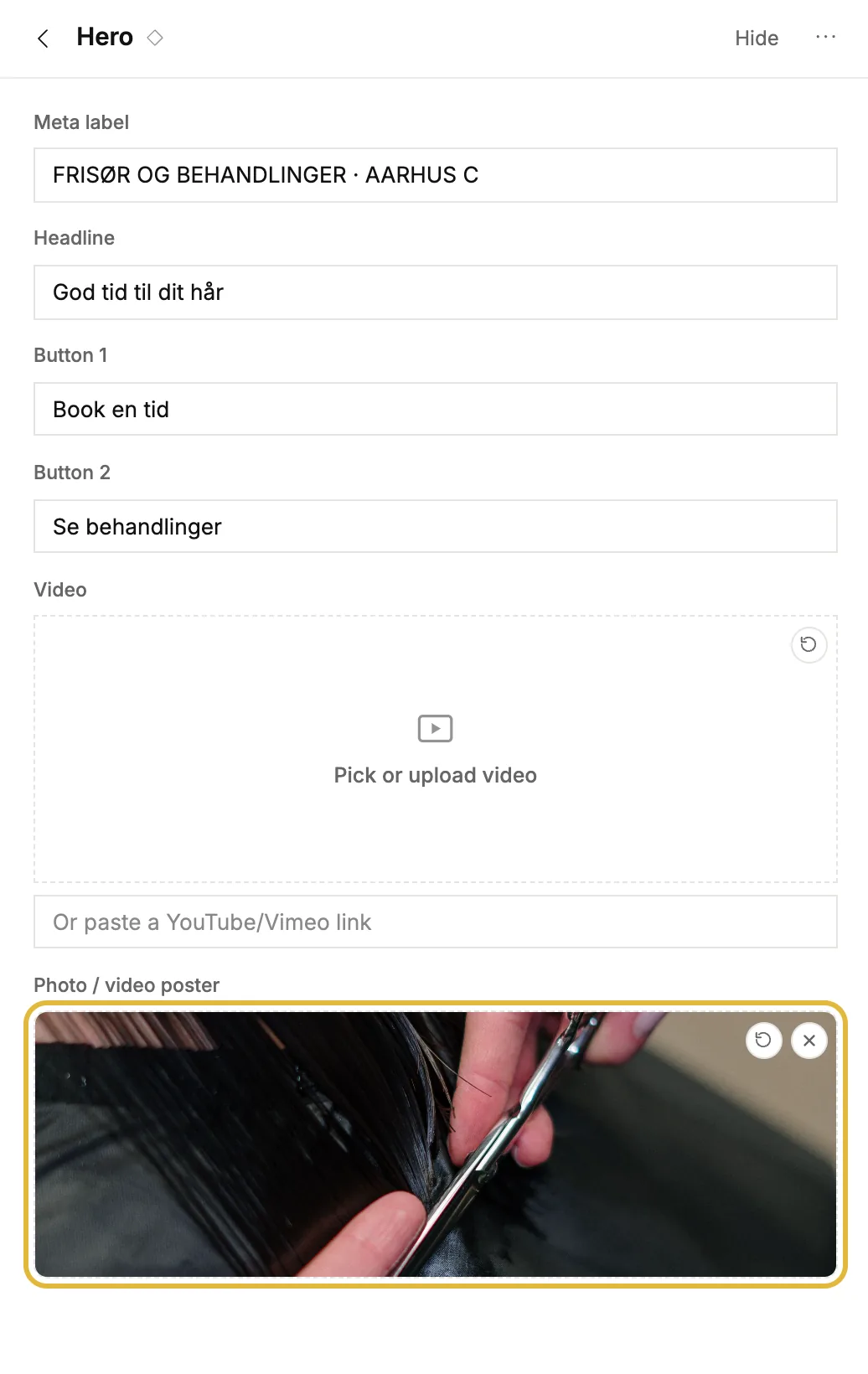
Click a block to open it in the panel on the left. It holds every field the block has: text, buttons and links, images, and settings such as layout and background. There's no save button, changes are kept as you type.
Change an image
-
Open the block and click Replace image, or Pick or upload where there's no image yet.
-
Pick an image from your Library, upload a new one (up to 10 MB), or fetch images from a website under From a website.
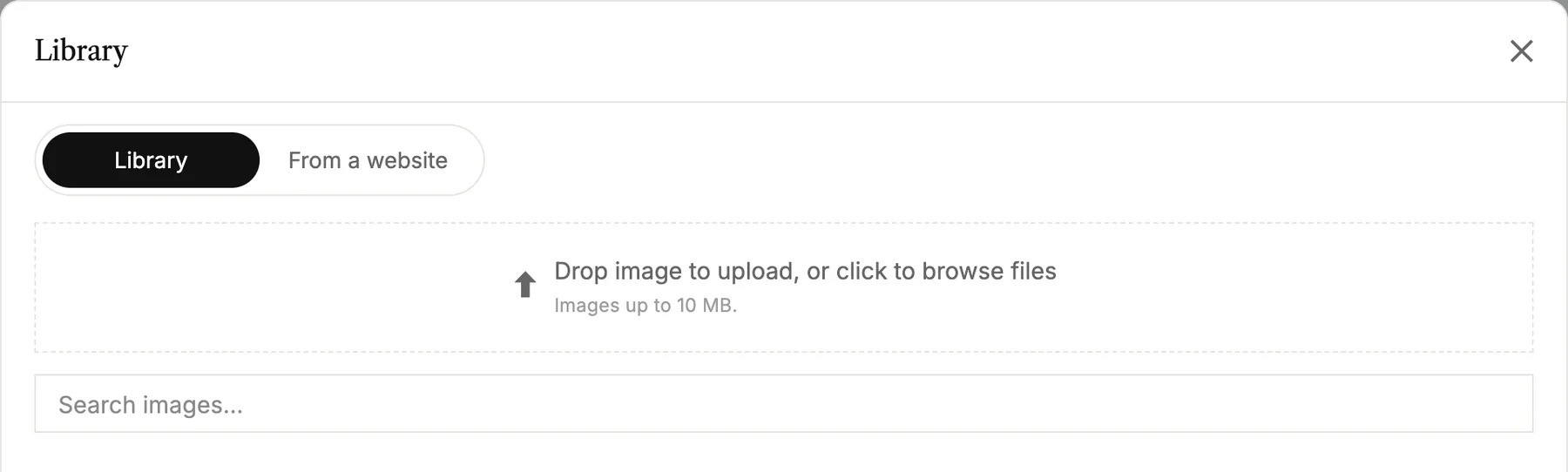
-
Write a short description of the image. It's read aloud to people who can't see it and helps your site get found. AI can write it for you.
- On big hero images you can set a focal point, so the important part stays in view on every screen size.
- Remove image takes the image off the block, but keeps the file in your library.
- On designer templates, Restore original brings back the template's own image.
Let AI rewrite a block
Click AI assist (✦) on a block. Pick a quick action, such as shorter, friendlier, more professional, fix spelling or translate, or write what you want in your own words.
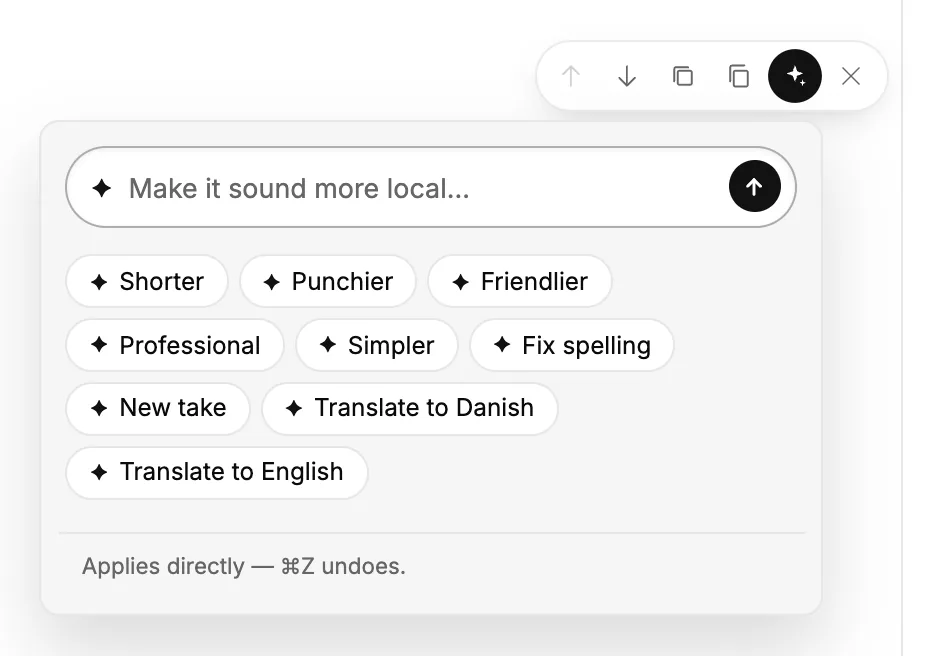
The change is made straight away. Not what you wanted? Press ⌘Z (Ctrl+Z on Windows) to undo it.
Good to know
- On designer templates you edit text and images, and the design takes care of itself.
- If your site has more than one language, the editor tells you which one you're viewing. Text you change there only changes in that language.
- Colours and fonts for the whole site are set in one place. See Change colours and fonts.