Change colours and fonts
Give your site its look: a ready-made palette or your own colours, your fonts, and how round the corners are.
Your site's colours, fonts and shapes are set once and used on every page. You change them in Branding, and the preview updates as you go.
Open Branding
-
On your site's dashboard, click Open branding. In the editor, switch to Branding at the top left.

-
Branding lists everything that's shared by your pages. Click a section to open it.
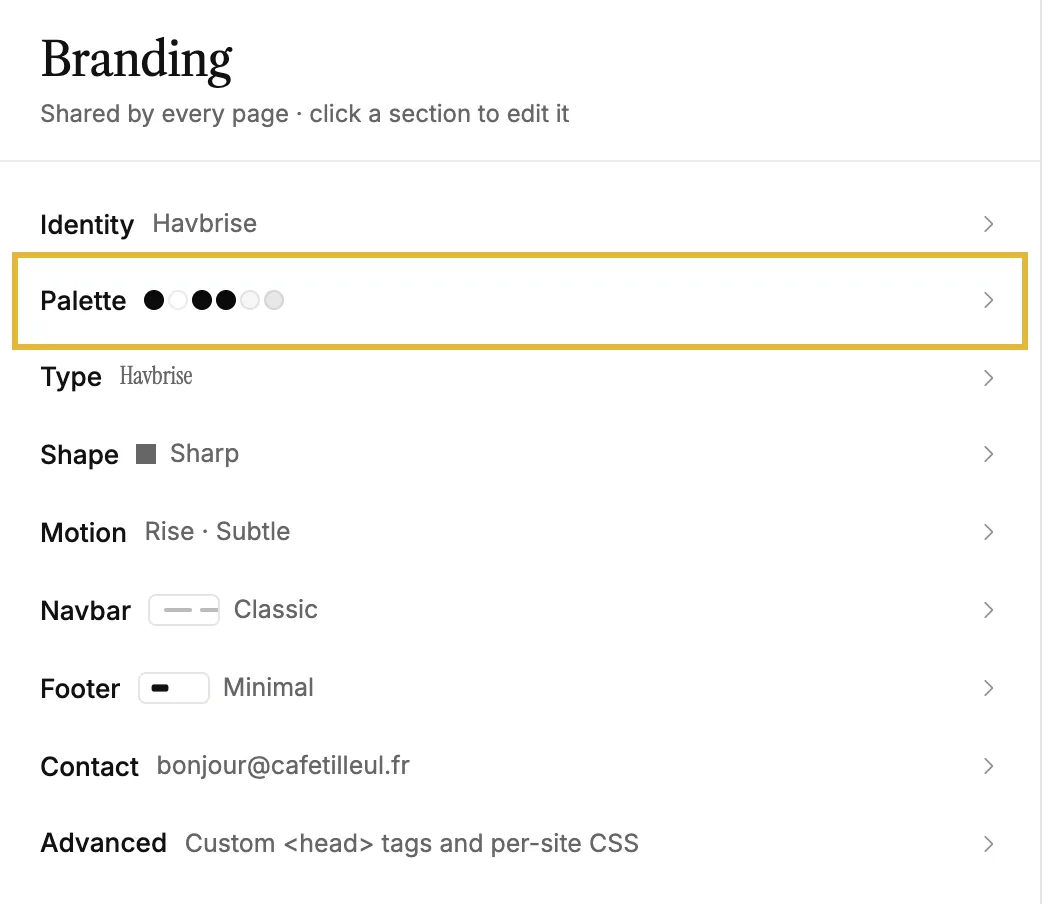
Colours
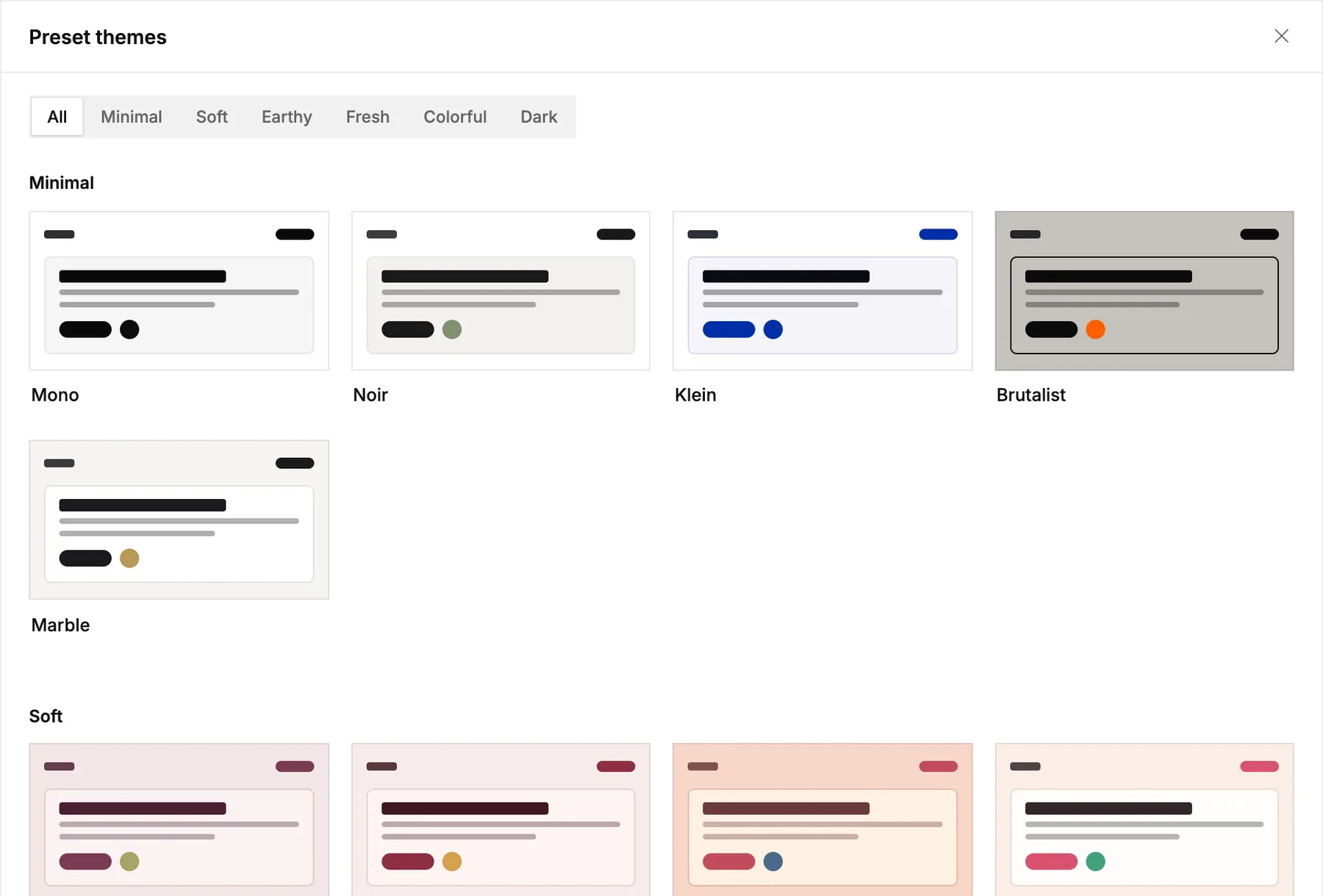
The quickest way is a preset. Open Palette, click Browse preset themes and pick one of the curated palettes. It sets all six colours at once, and you can still adjust them afterwards.
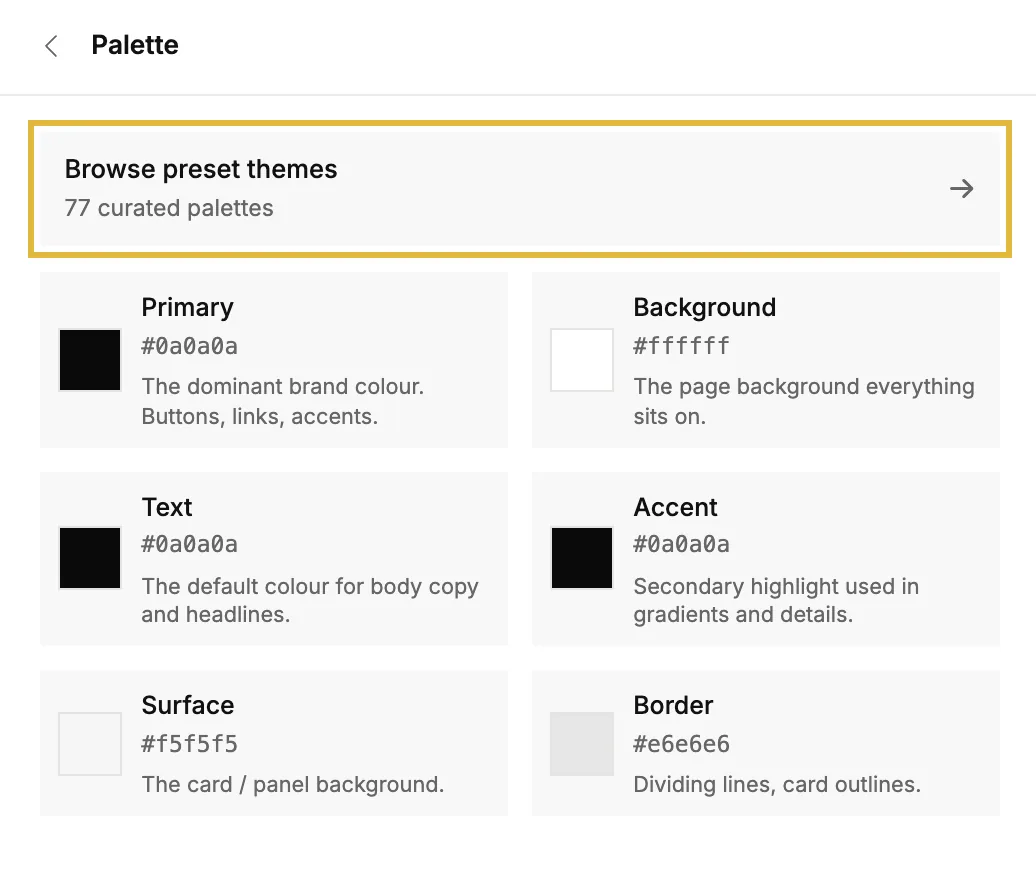
To set a colour yourself, click its swatch: Primary for buttons and links, Background and Surface for page and card backgrounds, and Text, Accent and Border for the rest.
Fonts
Open Type and pick a Headline font and a Body font. The cards show a few favourites, and the link under each list opens the whole library, with search.
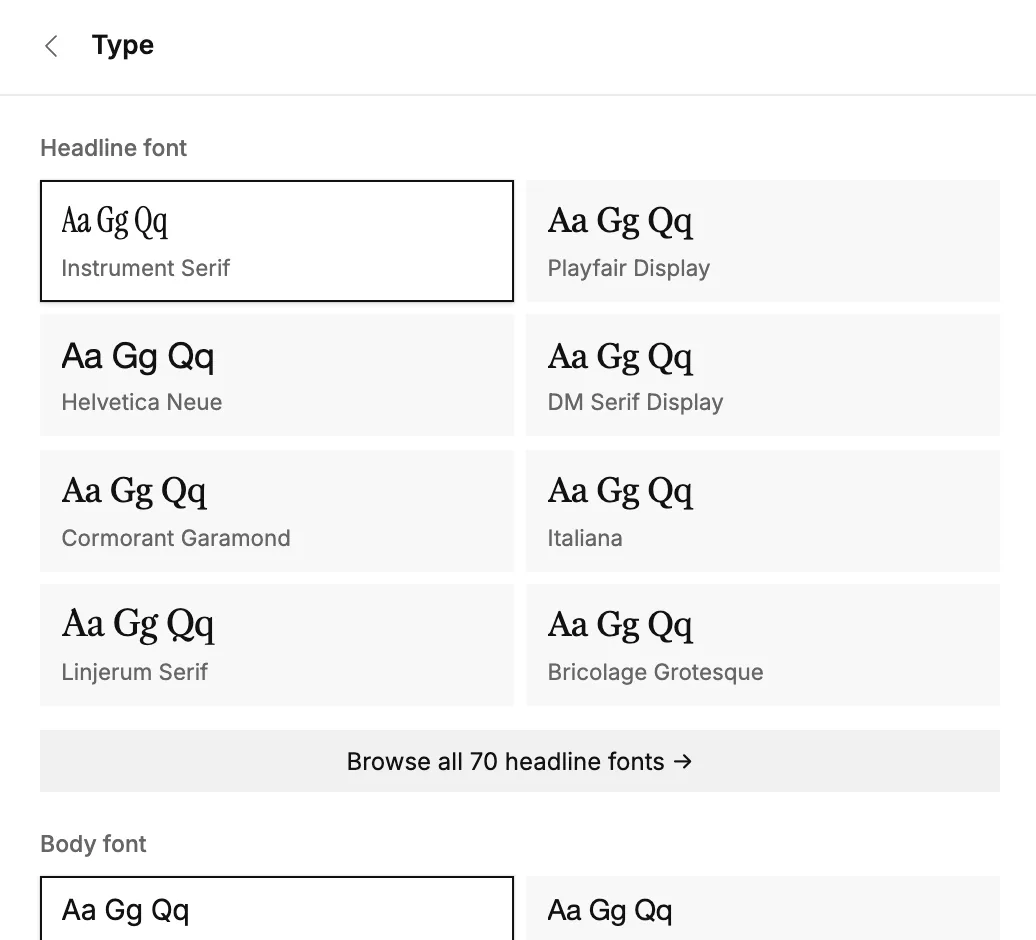
Have your own font files? Click Upload fonts and add .woff2, .woff, .otf or .ttf files. They appear under Your fonts, ready for headlines or body text. Further down, you can fine-tune size, weight, letter spacing and line height.
Corners
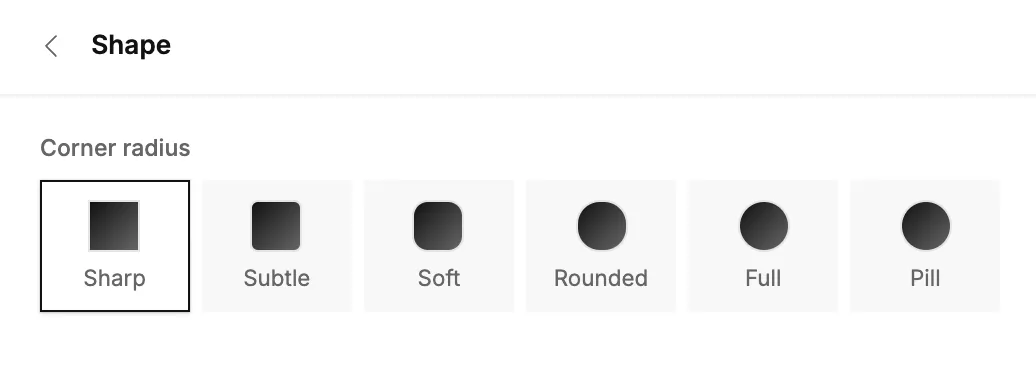
Shape sets how round buttons, cards and images are, from Sharp to Pill.
On sites built from a designer template, a few options, like motion and menu layouts, come from the template itself.