Translate your site into more languages
Add languages to your site, check and fix the translations, and see what visitors get.
Your site can be in more than one language. You write it in one language, your primary language, and every other language is translated from it by AI. You can then fix any text by hand.
Add a language
-
In the editor, open Branding at the top and choose Identity. Scroll to Languages.
-
The first row is your primary language, the one your pages are written in. Below it, choose a language under Add a language.
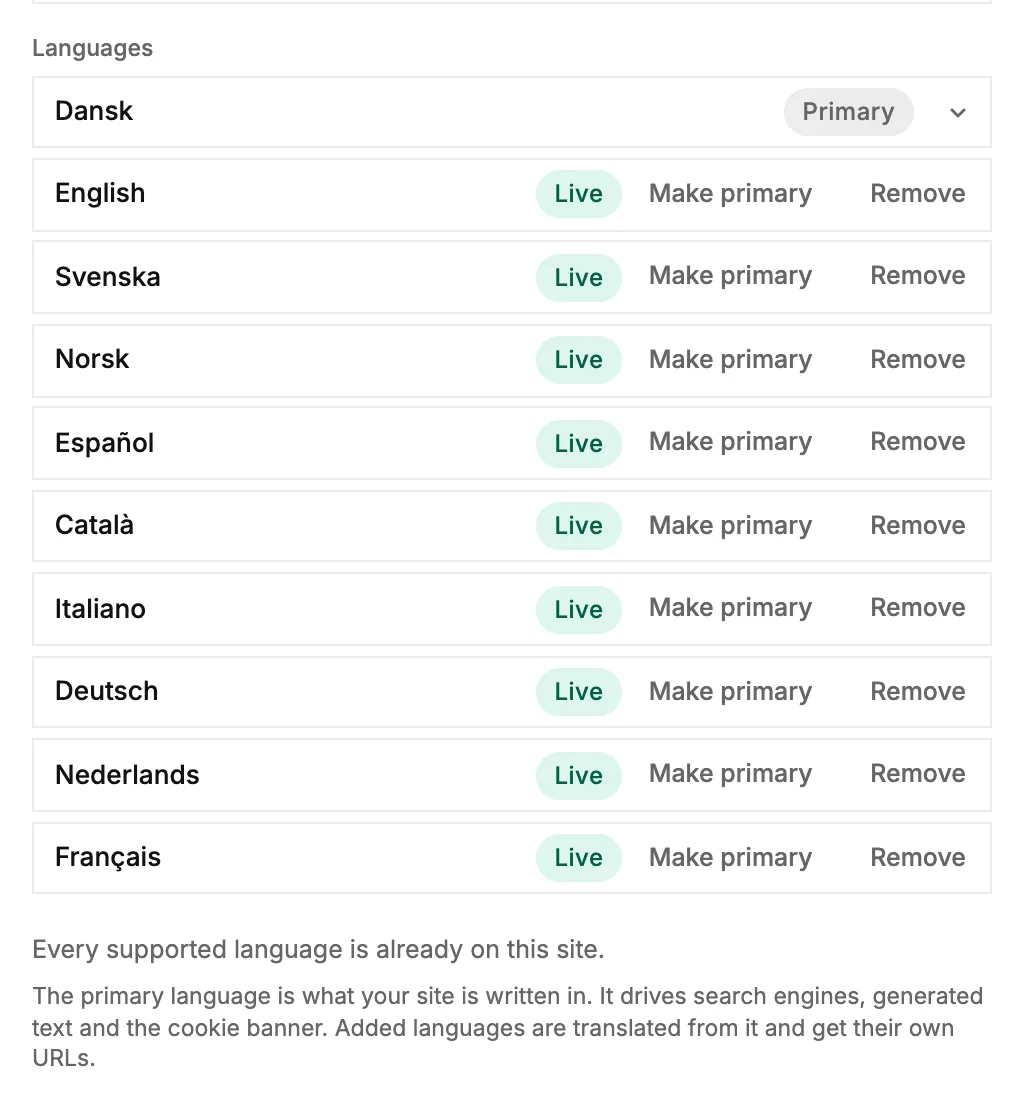
-
The new language is translated in the background while you keep working. It shows Translating… until it's done.
-
Publish your site. The new language goes live with it, together with a language switcher on your site.
Check and fix a translation
The language bar at the bottom of the editor switches the preview between your languages. + takes you to Languages to add another one.

When you view another language, a note at the top tells you so. Click any text and fix it, just like in your primary language.
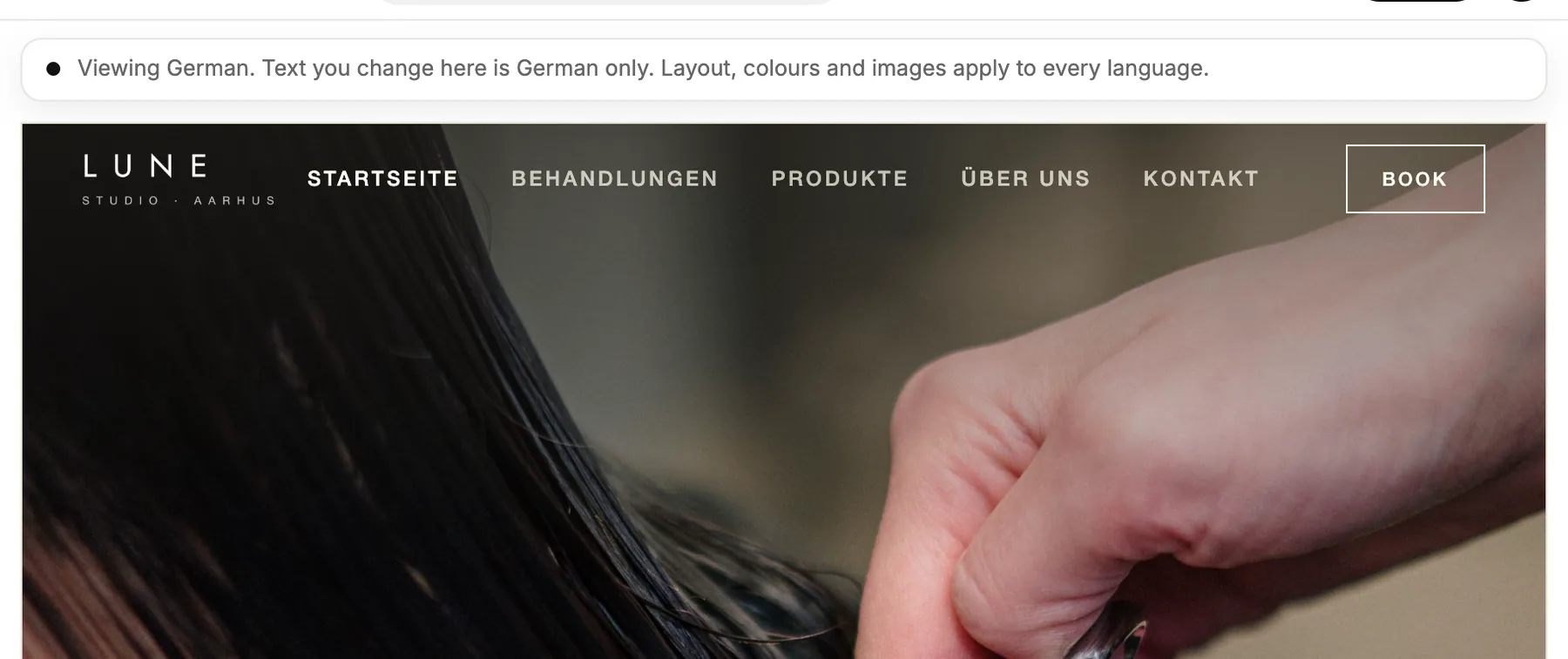
- Text is per language. A change you make while viewing German only changes the German text.
- Everything else is shared: blocks, layout, colours and images look the same in every language. Change them in any language and they change in all of them.
- Text you fix by hand stays the way you wrote it, also when the AI translates again later. Use the AI translation puts the AI's version back.
When you change the text in your primary language
Edits in your primary language aren't translated while you type. Changed and new texts are counted as not translated yet, and you have three ways to catch up:
- Click Translate in the note at the top while you view that language, or Translate all while you view your primary language.
- Click the Translate chip on a block that isn't translated yet.
- Just publish. When something isn't translated, the publish window offers Translate and publish. With Publish anyway, those texts show in your primary language until they're translated.
What visitors see
- A language switcher shows up in your site's menu and footer by itself once you have more than one language live.
- Your primary language keeps your normal addresses. Every other language gets its own, for example /en/ in front of the page.
- Search engines are told about every language version, so each one can be found in its own language.
Remove a language, or change the primary one
- Remove takes the language off your site the next time you publish. The translations are kept, so adding it back later is instant.
- Make primary makes another language the one your pages are written in. The old primary language becomes a translation, so nothing is lost. This changes your live site straight away.
Good to know
- You can add the languages the studio itself is available in, up to 10.
- Articles are translated one by one, from the language menu in the article editor. See Write and publish articles.
- Sites made with the AI builder can't have more than one language yet.