Connect Claude, ChatGPT or another AI app
Let Claude, ChatGPT, Cursor or another AI app work on your site. Copy one address, log in, and choose what it may do.

LINJERUM Studio has a connector for AI apps. Once your app is connected, you can ask it in plain words to write pages, add sections, translate or tidy up, and it works directly on your site. It works with any app that supports remote MCP connectors.
 Claude
Add a section with our opening hours to the home page.
You ask, in your own words.
Bistro Ravn
Opening hours
Tue to Sat17–23
Sun and MonClosed
The AI drafts it on your site.
You check it and publish.
Open the connect window
In the editor, click the plug button at the top right, Use with Claude, ChatGPT and more. You'll find the same window under Account settings, in Connected apps, with Connect an app.
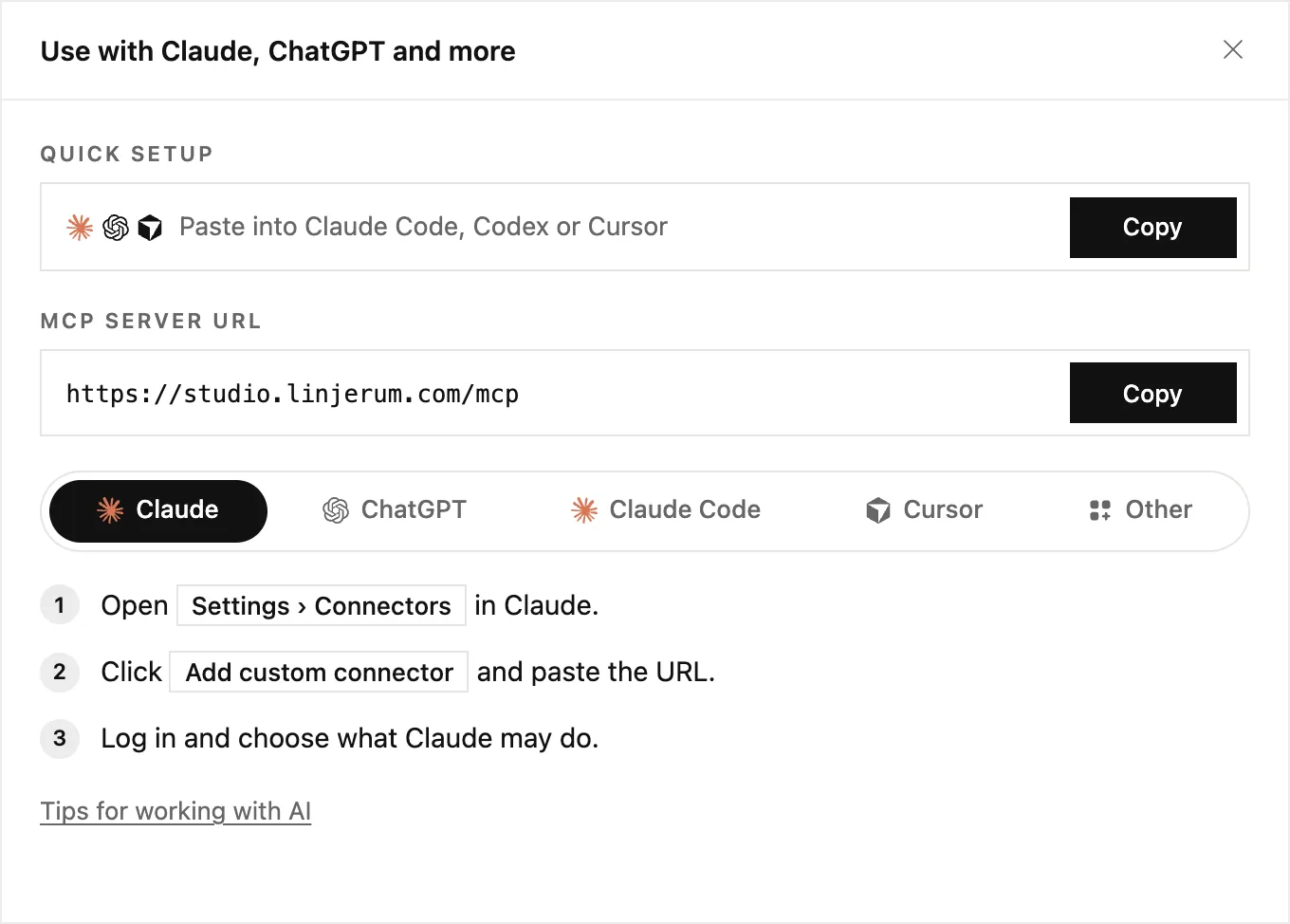
The window has the address your AI app needs, the MCP server URL, and the steps for each app. Copy the address with Copy.
Connect your app
Pick your app below. Each takes a minute, and you only do it once.
Claude
- In Claude, open Settings › Connectors.
- Click Add custom connector and paste the address.
- Log in to LINJERUM Studio and choose what Claude may do.
ChatGPT
- In ChatGPT, open Settings and add a connector.
- Paste the address.
- Log in and choose what ChatGPT may do.
Claude Code
- Run the command below in your terminal.
- Your browser opens: choose what Claude Code may do, and allow it.
- Start claude and ask about your sites.
claude mcp add --scope user --transport http linjerum https://studio.linjerum.dk/mcp && claude mcp login linjerumCursor
- Add the settings below to mcp.json in Cursor.
- Log in when Cursor asks.
{
  "mcpServers": {
    "linjerum": { "url": "https://studio.linjerum.dk/mcp" }
  }
}
Other apps
- In your AI app, add a remote MCP server, often called a connector.
- Paste the address below, then log in and choose what the app may do.
https://studio.linjerum.dk/mcpChoose what to import
When you log in, you choose what the app may do. Seeing your sites is always on. Everything else starts switched off, so you decide:
- Change pages, blocks and articles lets it edit your drafts.
- Publish changes lets it put changes live. It always shows what will go live first, and your site needs a plan.
- Delete pages, blocks and articles lets it remove things.
- All workspaces, or Choose workspaces to pick the ones it may work in.
Change access or disconnect
Go to Account settings and find Connected apps. Click Edit to change what an app may do or where, or Disconnect to remove its access right away.
Connected? Read Build your site with AI: tips and tricks next.