Set up online booking
Let visitors book a time with you, a table or something you rent out, straight on your site.
With online booking, visitors pick a time with you right on your site, and the booking lands in your calendar in the studio. This guide is about appointments with a person, and things like rooms, boats or courts. For a restaurant, see Take table bookings for your restaurant. You find it all under Bookings in the menu on the left, made for a computer screen.
Set it up
-
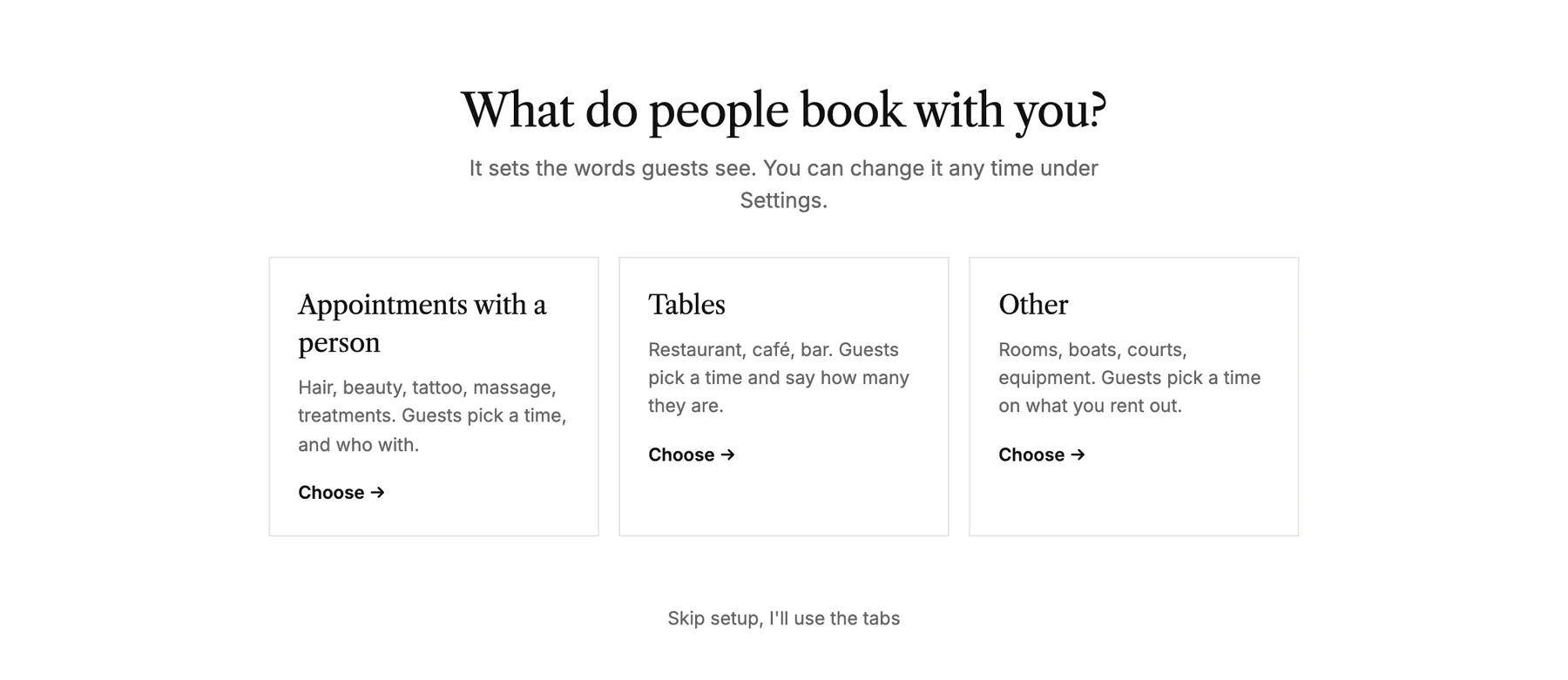
Open Bookings and choose your site. The first time, a short setup asks what people book with you: Appointments with a person, Tables or Other.
-
Choose how people book. With Time booking, visitors pick a free time themselves. With Requests, they send a request, and you get back to them.
-
Add who or what gets booked, with the days and hours they're open, and what can be booked and how long it takes.
-
Choose how late guests can cancel, add a line for every confirmation mail if you like, and switch bookings on.
Rather do it yourself? Skip setup, I'll use the tabs takes you straight to the tabs, where you can set up everything the setup does.
Schedules and services
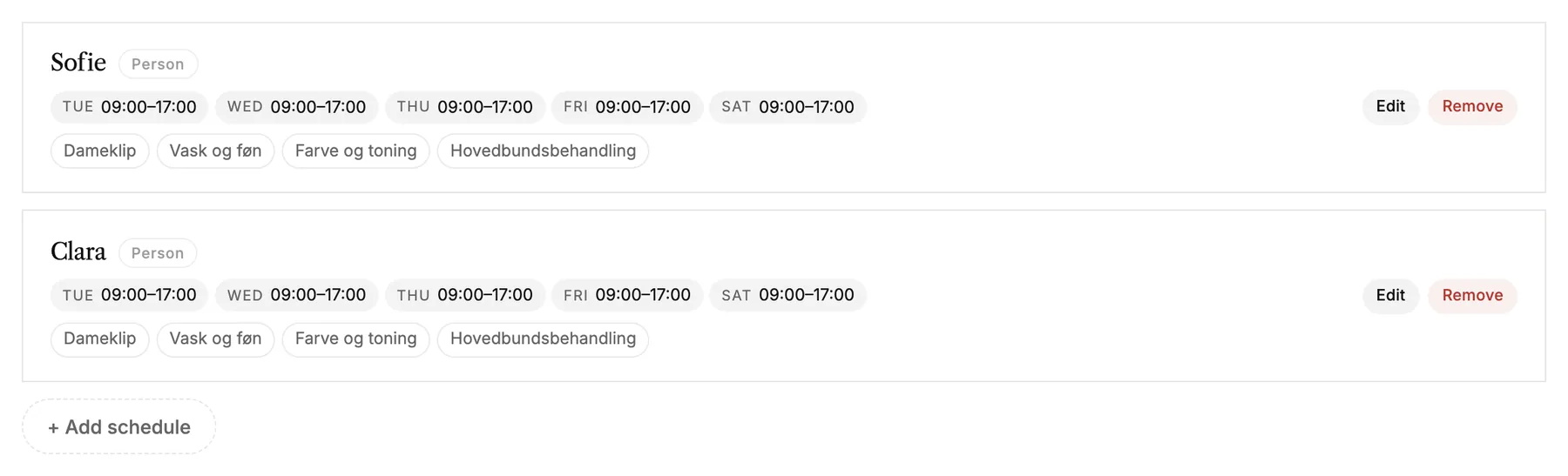
A schedule is someone or something that can be booked, with its own weekly hours. Under Schedules you add one per person, and choose which services each of them offers.
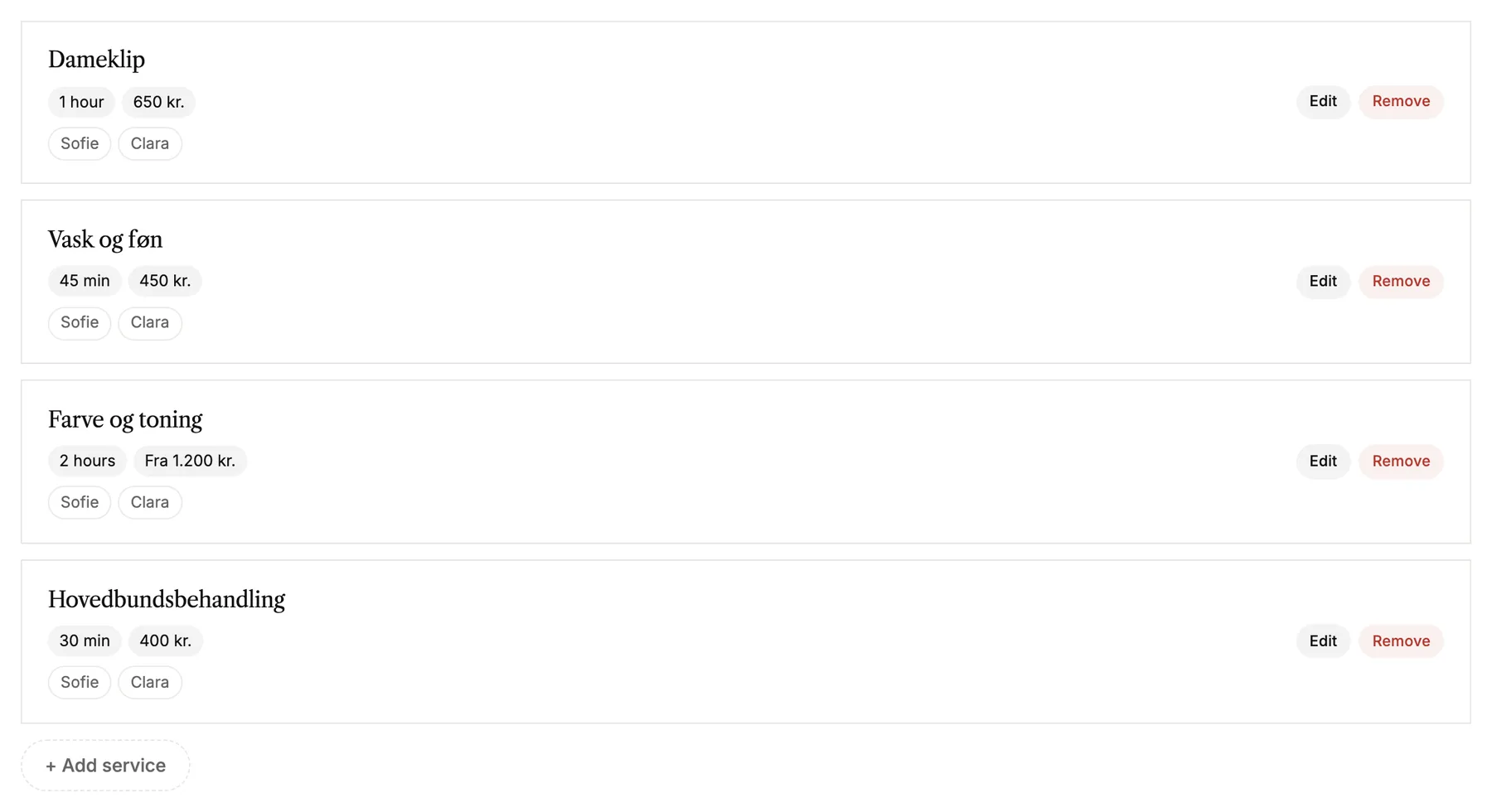
Under Services you add what people can book: a name, how long it takes, a price and a short description.
Put booking on your site
-
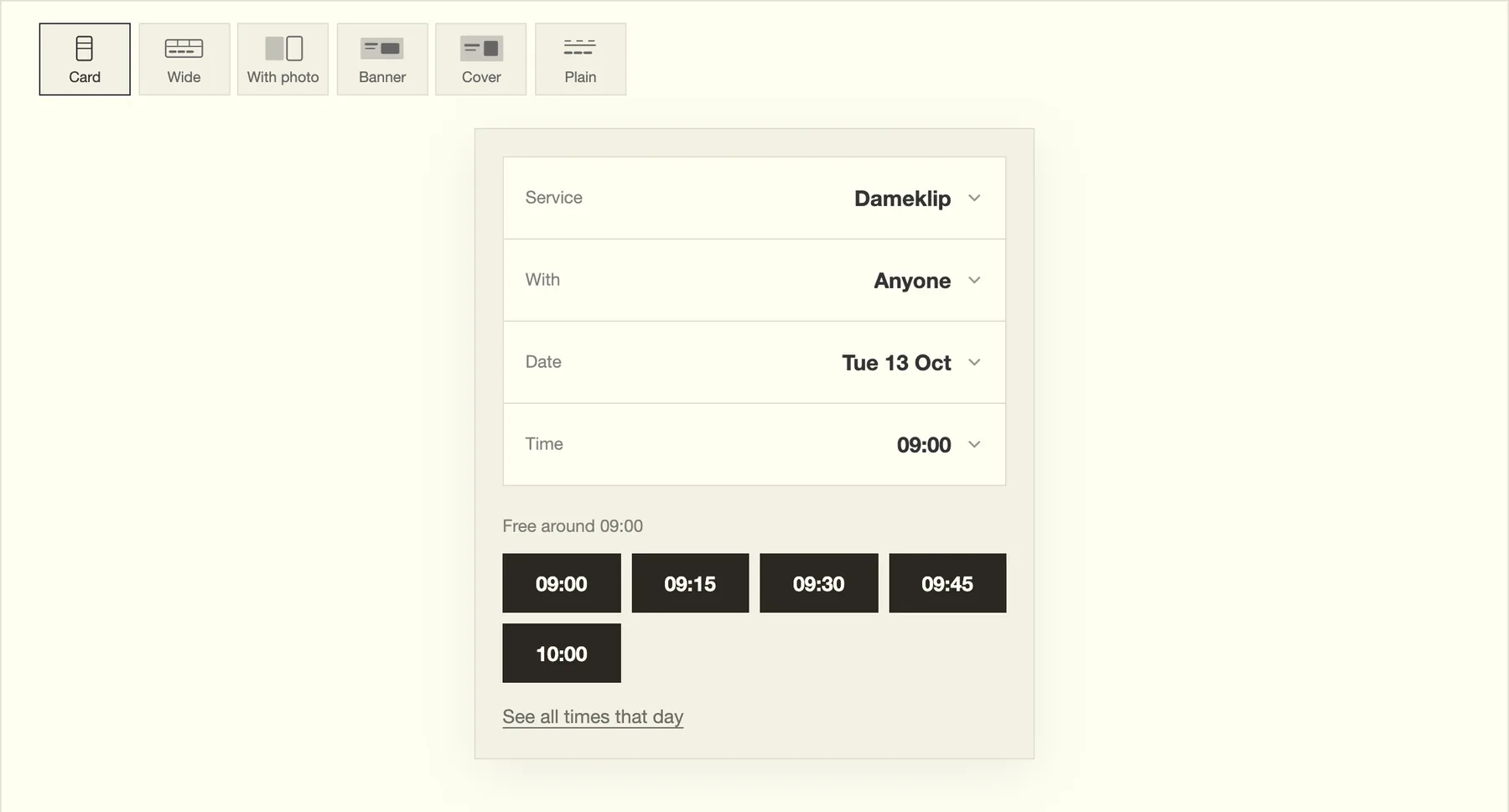
In the editor, add the Book a time block to the page where people should book. See Add, move and remove blocks.
-
Under Settings in Bookings, make sure Online booking is on. While it's off, the block tells visitors that booking isn't available right now.

-
Publish your site, so the new block goes live.
Preview shows the booking exactly as visitors see it, with your real free times. Nothing you click there makes a booking.
When someone books
- The booking shows up under Overview, in your day.
- The guest gets a confirmation mail with a link to cancel. You get a mail about the new booking.
- Under Mails you choose which mails go out, preview them and add your own line.
- Guests can cancel online up to the time you chose. In Overview you can move a booking, mark a no-show or cancel it yourself.
Good to know
- Holidays and sick days go under Time off. Bookings that already fall in that time are listed, so you can move them.
- Requests land under Requests. Reply by email opens your own mail program, addressed to the guest.
- Mails about new bookings go to the address your form messages go to, set in your workspace settings.