Invite your team
Invite people to work on your sites, choose what they can do, and manage your own account.
Your sites live in a workspace. Everyone you invite to the workspace can work on all of its sites.
Invite someone
-
Open Members in the menu on the left.
-
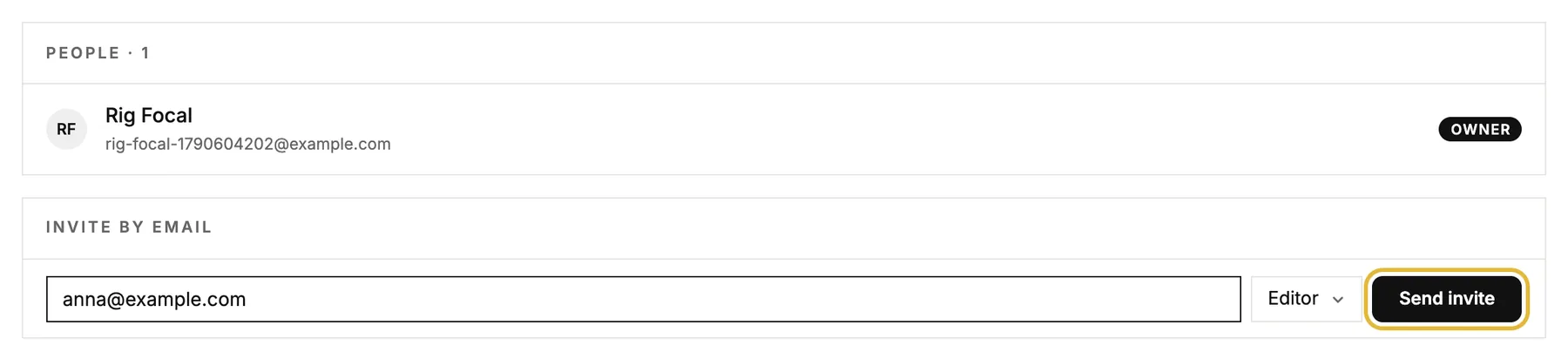
Type their email address, choose Editor or Owner, and click Send invite.
-
They get a mail with a link. They create an account, or log in, and they're in.
Until they accept, the invite is listed as Pending under people. An invite works for 14 days. An owner can cancel it with the cross on its row.
Editors and owners
- Editors build, edit and publish the workspace's sites, and can invite more editors.
- Owners can do the same, and also manage the people and their roles, share links and the workspace's settings.
- To change someone's role or remove them, use the menu on their row: Make owner, Make editor or Remove. A workspace always keeps at least one owner.
Share a link instead
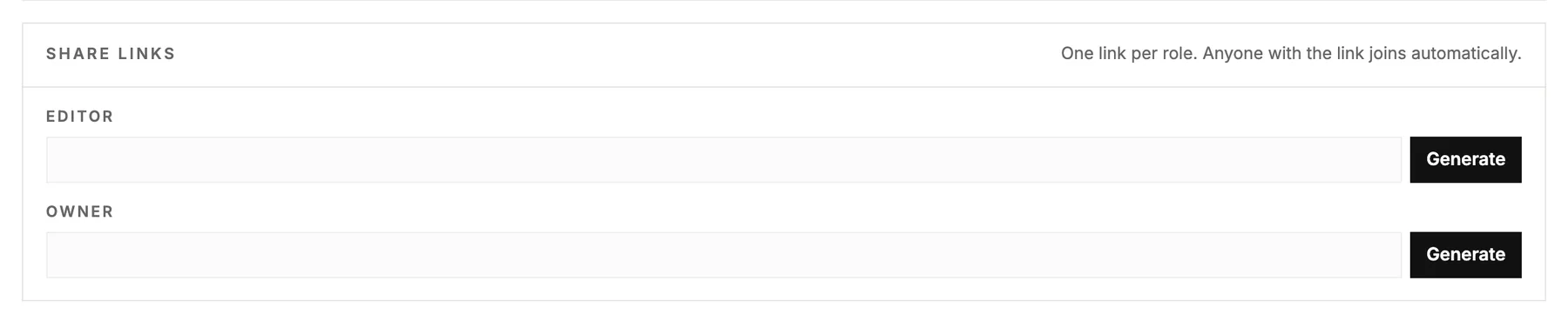
Owners can make a link per role that anyone can use to join, handy for a whole team. Generate makes the link, Copy copies it, Rotate replaces it so the old one stops working, and Revoke turns it off.
Your own account
Open the menu with your name at the bottom left and choose Account settings. There you change your name, photo and email, the language the studio is shown in, and your password, with a reset link we mail you.
Work in more than one workspace? Switch between them at the top of the menu on the left.